Features
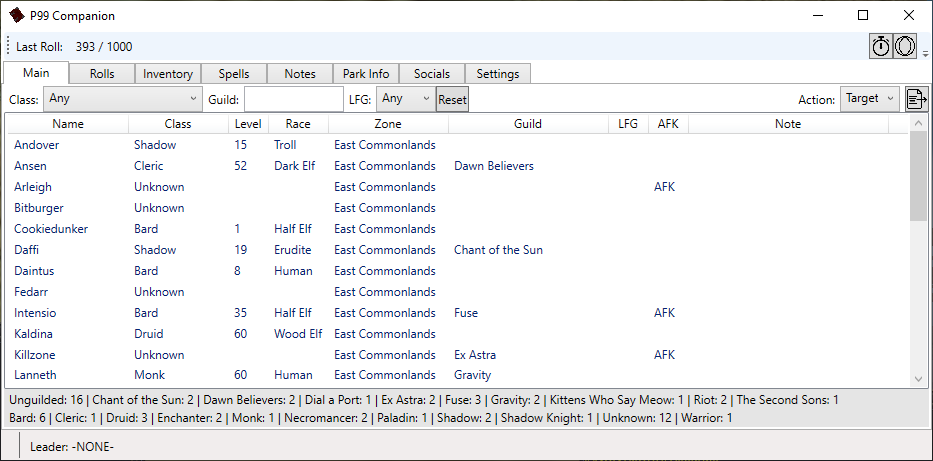
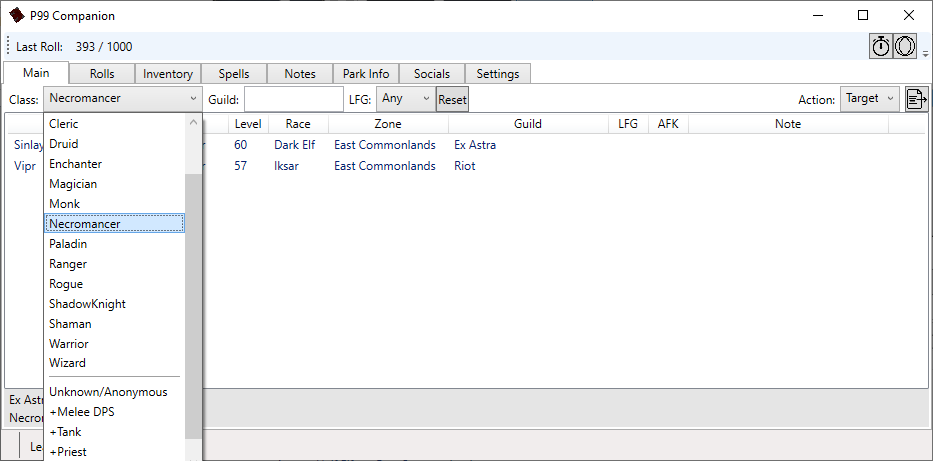
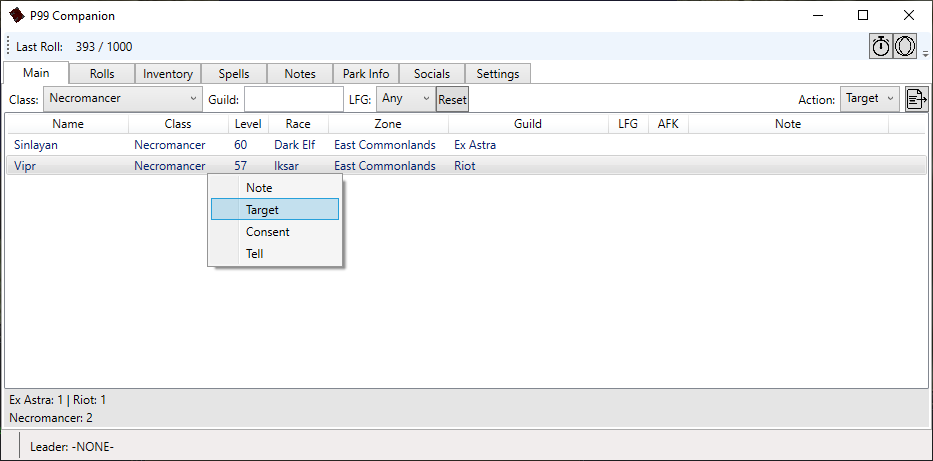
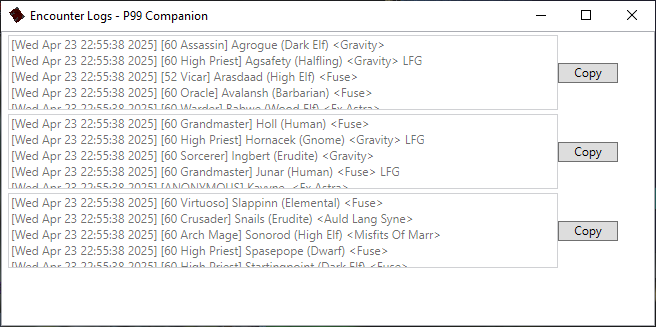
/who Results Display
General Utilities
Along with major functionality pieces, there are also small QOL items added in the application.
Your character's last known location is displayed in the footer of the app. Double clicking the location
will place it on your clipboard.
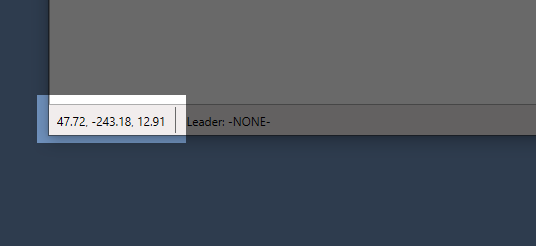
Right clicking on the last known location will show a popup of your last location in your last five zones. This is helpful for letting people know where your corpse is if you happen to die. Clicking on an item in the popup will place it on your clipboard.
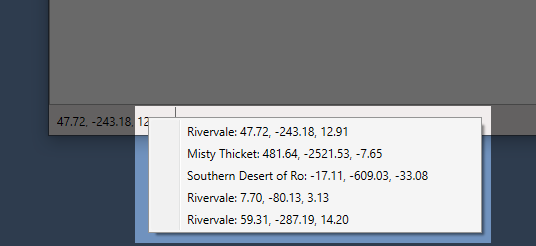
Right clicking on the last known location will show a popup of your last location in your last five zones. This is helpful for letting people know where your corpse is if you happen to die. Clicking on an item in the popup will place it on your clipboard.
Your current group leader is displayed in the footer of the app. Double clicking on this will
place a blurb about the current leader on your clipboard.
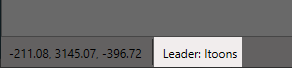
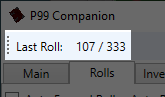
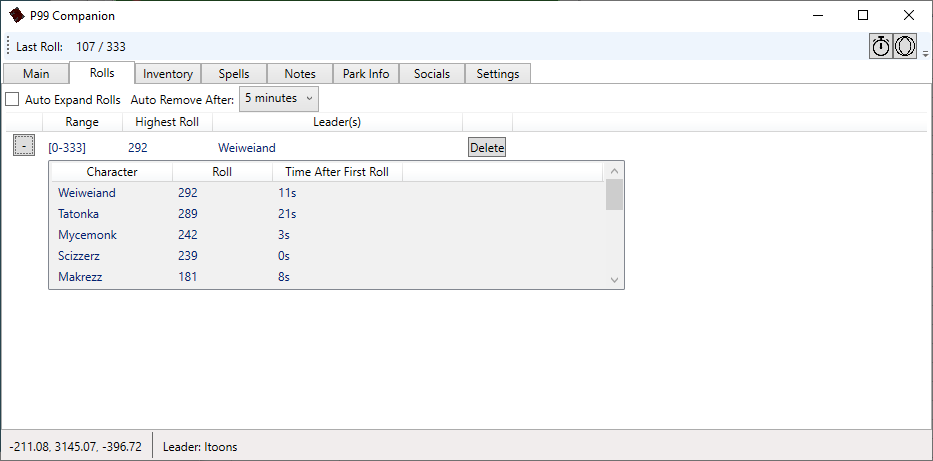
Your last roll is displayed in the main toolbar of the app.
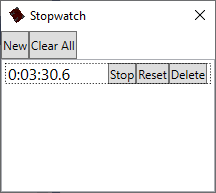
A basic stopwatch can be launched by clicking the button in the toolbar.
Rolls / Randoms
Inventory Search
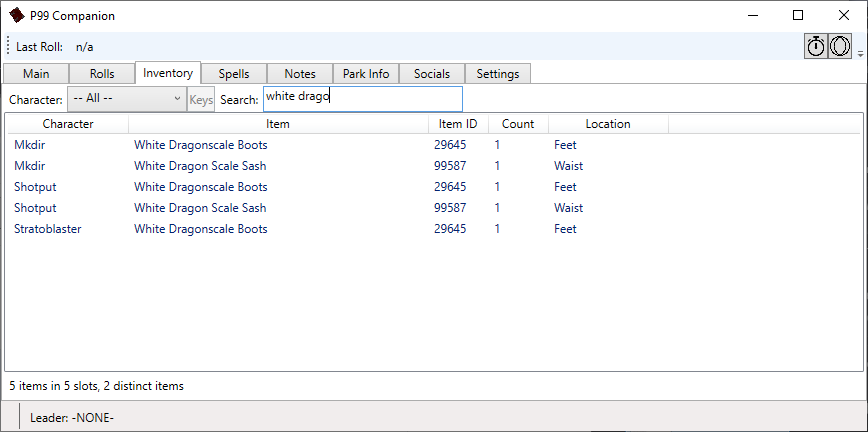
The Inventory tab provides instant searches across all inventory files created with the /outputfile inventory command.
New and updated inventory files are reflected immediately.
Using custom file names that do not end in -Inventory.txt will not be detected.
Using custom file names that do not end in -Inventory.txt will not be detected.
The Character list allows filtering to the selected character, while the Search box allows searching by item name. Putting a purely numeric value in
the search box will search on the Item ID instead of the name.
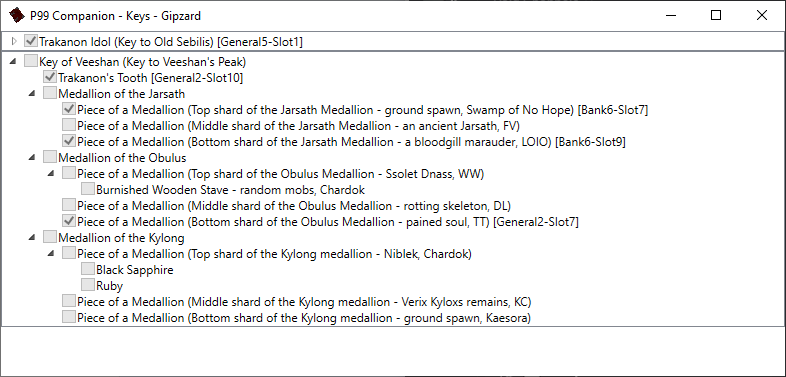
When a single character is selected, the Keys button will become enabled. Clicking it will display this
window detailing various key pieces and their locations.
Spellbook Search
The Spellbook tab provides instant searches across all spellbook files created with the /outputfile spellbook command.
New and updated spellbook files are reflected immediately.
Using custom file names that do not end in -Spellbook.txt will not be detected.
Using custom file names that do not end in -Spellbook.txt will not be detected.
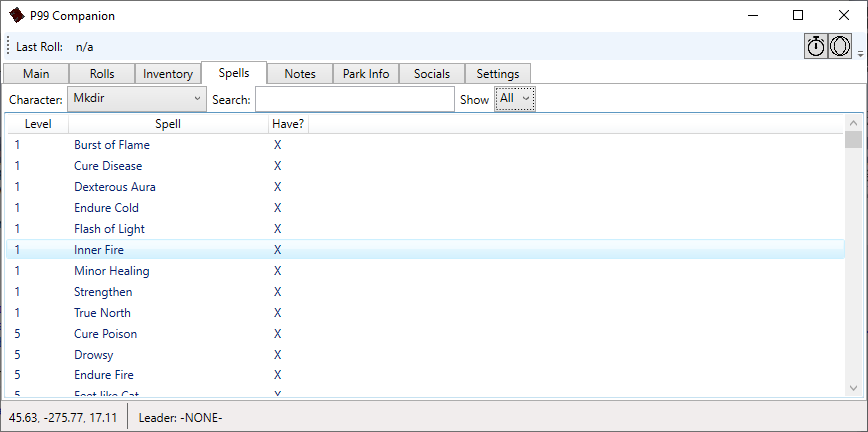
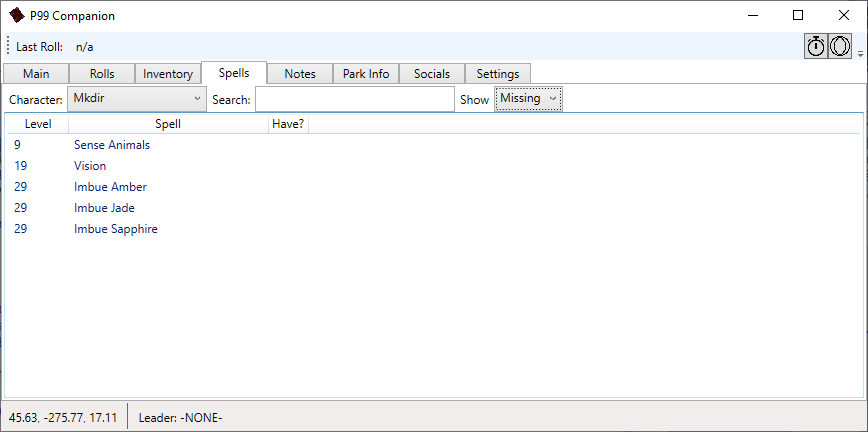
After a character is selected, the spell list will populate. The search box allows searching by spell name
while the Show list allows filtering to either All, Have, or Missing. Double clicking on an entry will
launch the wiki page for that spell in your browser.
Notes
Park Info
The Park Info tab allows a quick and easy way to see where you left characters or who you have
in a particular zone. This information is collected passively as you play characters and
instantly searchable.
The data points tracked for each character are as follows:
- Server Name
- Character Name
- Zone - the last zone in which the character was played
- Account - the username of the account to which the character belongs
- Bind - the bind location for the character, detected by the act of being bound or by the /charinfo command
- Sky Corpse Timer - the time since the character's last death while in the Plane of Sky, will end at 7 days (when any corpse will have rotted)
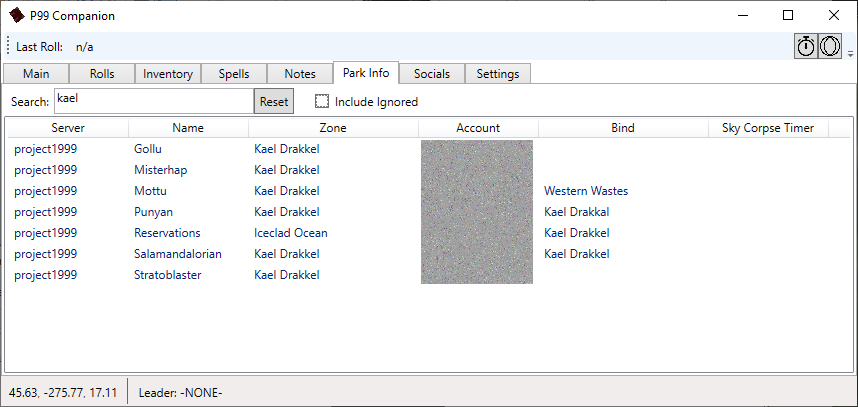
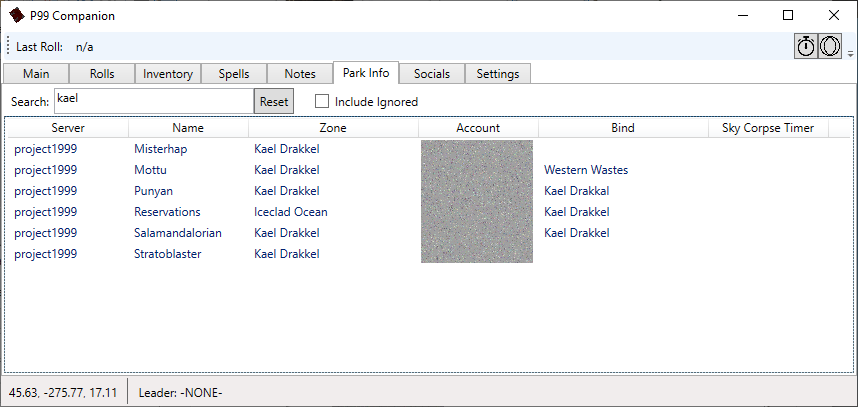
The Search box filters the character list to those whose name, zone, account, or bind point
include the searched text. For example, to see characters that are currently in or bound in Kael:
If you play characters that are not your own on a frequent basis, it can become burdensome to have them
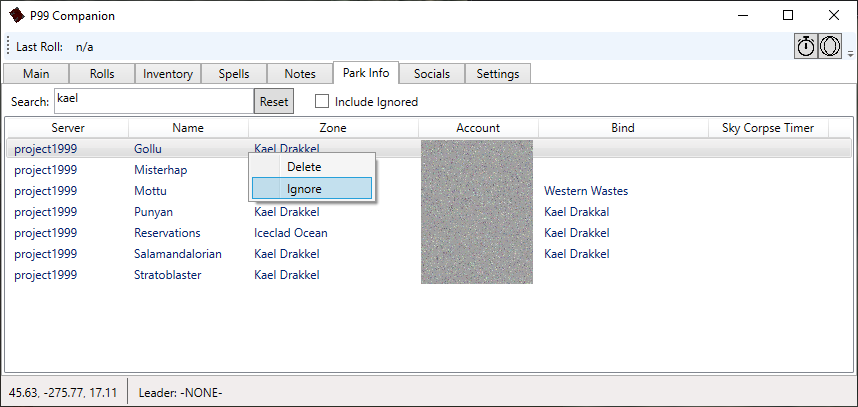
also included on your Park Info tab. Right clicking on an item will allow you to Ingore or Delete an
entry. If it is deleted, it will come back the next time you play that character. If it is ignored,
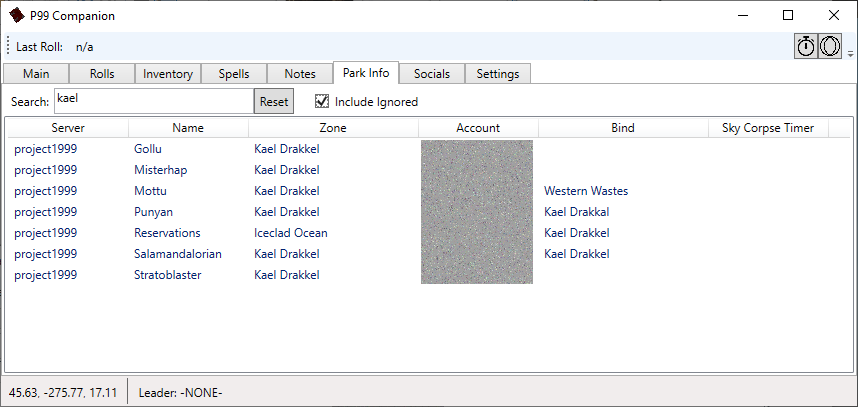
it will not be shown unless the Include Ignored button is checked even through repeated usage.
Ignoring "Gollu":
Gollu no longer appears on the list:
Checking "Include Ignored" will display Gollu again, who can now be unignored with a right click:
Ignoring "Gollu":
Gollu no longer appears on the list:
Checking "Include Ignored" will display Gollu again, who can now be unignored with a right click:
Socials
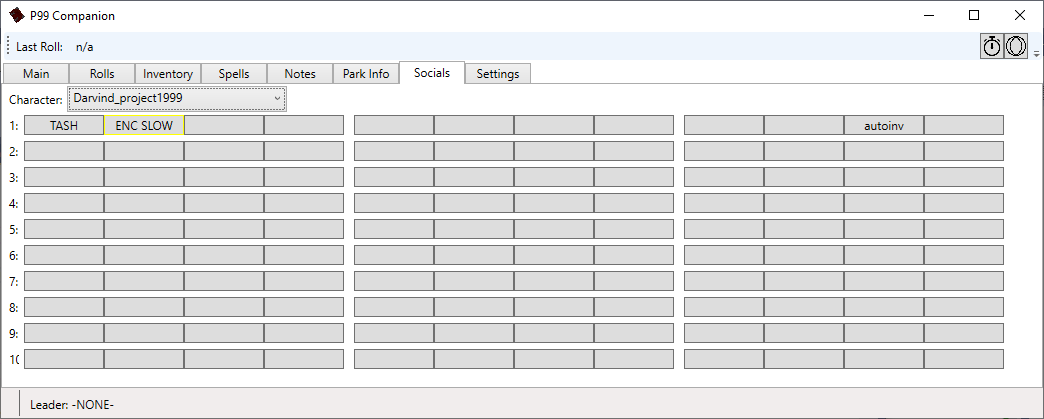
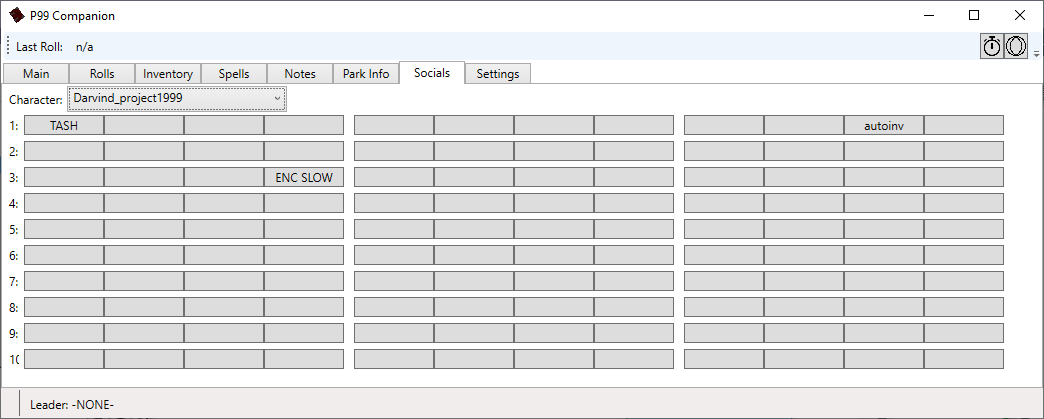
Social pages can be rearranged similar to rearranging a spellbook in game. Right click on a social then
right click on the location where you want it to be to swap places. Any hotbuttons pointing to these
socials are automatically updated. Because this edits your character settings files, you must be logged
out when using this function.
Discord Integration
Discord Overlay
The Discord Overlay feature allows you to see who is speaking in a Discord voice channel
while in game.
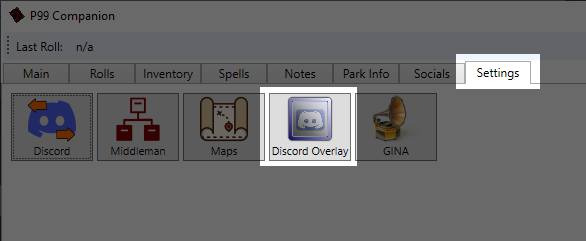
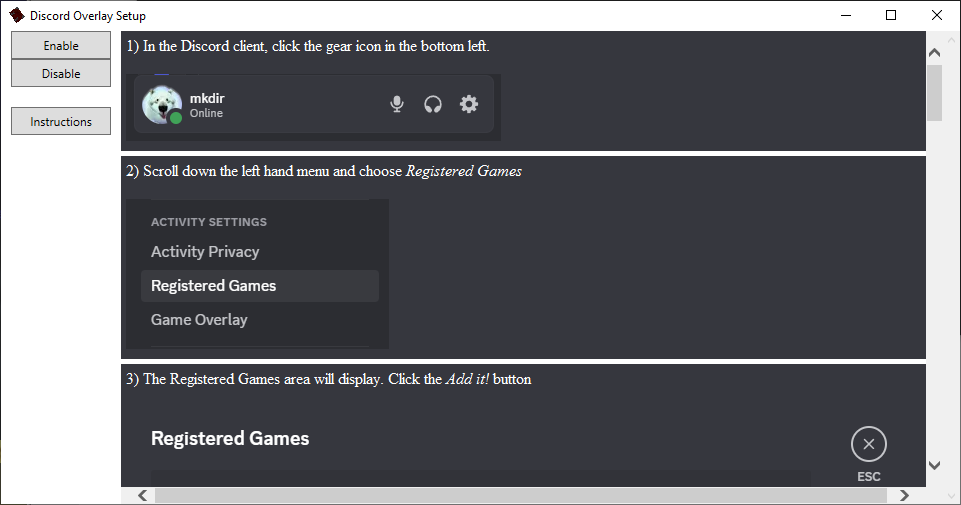
Instructions for enabling Discord Overlay are presented in the app as well as here.
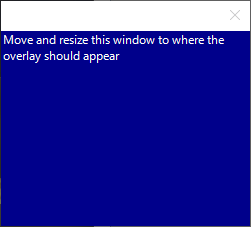
When the Discord Overlay Setup window is open and the overlay is enabled, the Target Area window will appear allowing for sizing and positioning of where the overlay should be located.
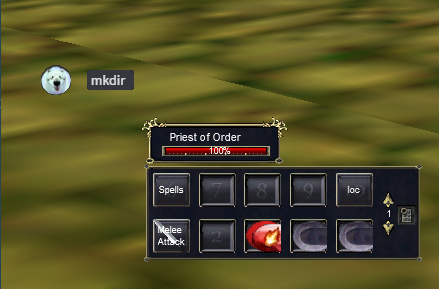
The active speaker(s) in your current Discord voice channel will appear where there Target Area window was placed.
Instructions for enabling Discord Overlay are presented in the app as well as here.
When the Discord Overlay Setup window is open and the overlay is enabled, the Target Area window will appear allowing for sizing and positioning of where the overlay should be located.
The active speaker(s) in your current Discord voice channel will appear where there Target Area window was placed.
External Application Integration
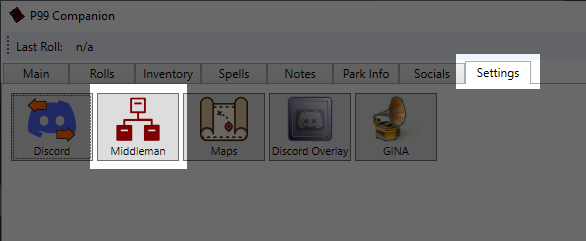
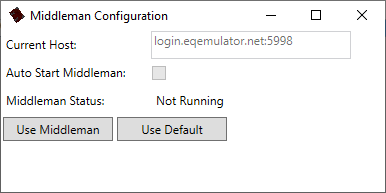
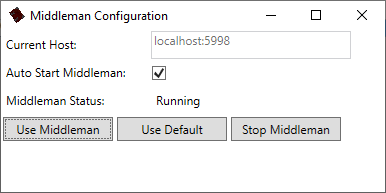
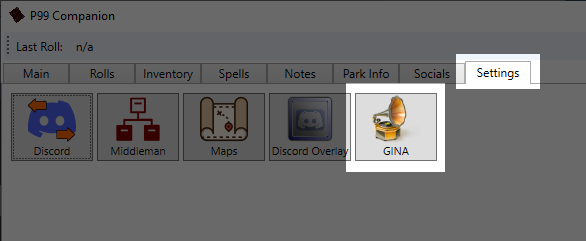
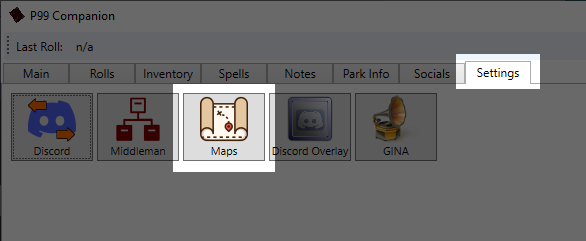
Maps (WIP)
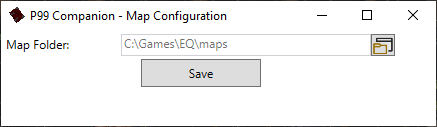
Map functionality is still a work-in-progress but is somewhat functional. Map files in the same format that
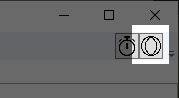
the EQ in game mapping used must be provided externally. Once configured, the globe icon in the toolbar
will become clickable.
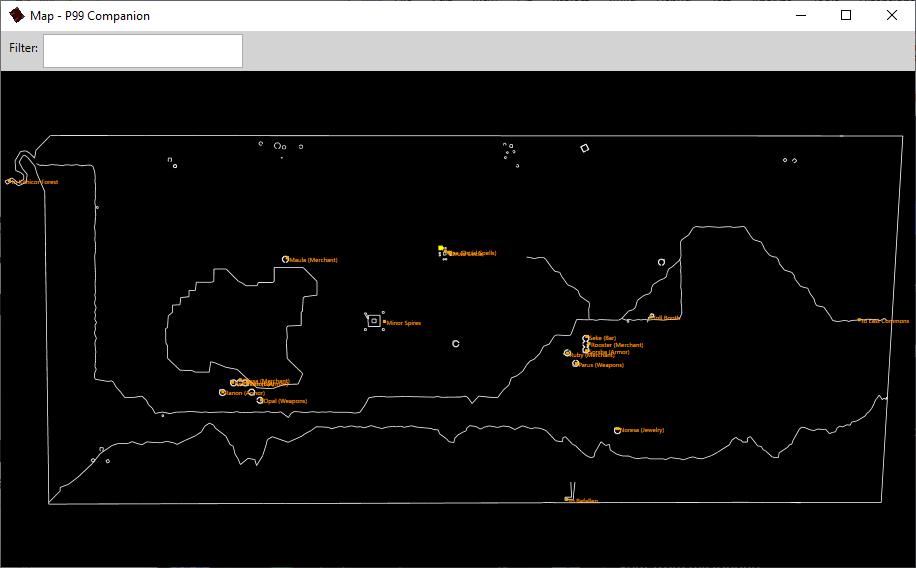
The map will auto-detect your zone whenever you enter a new zone or perform a /who of the current zone. Your dot on the map is updated whenever you perform a /loc command.
The map will auto-detect your zone whenever you enter a new zone or perform a /who of the current zone. Your dot on the map is updated whenever you perform a /loc command.